
Ayah Editor · Features
Every part of the editor, explained.
Ayah Editor is a project-based desktop application for producing Qur'anic video. This page walks through what each part does and, more usefully, why it behaves the way it does — because most of those decisions are about protecting the accuracy of the text while keeping you in control of everything else.
The project model
Nothing in Ayah Editor happens outside a project. A project is a document — like a Photoshop file — that holds the audio reference, the verse range, the translation and every edit you have made, together with the provenance of all of it. Reopening a project restores the exact state you left, including the undo history's starting point.
Creating one is a four-step wizard, and each step records not just a choice but its source and version:
- Recitation. Import an MP3, M4A or WAV, or start on a 40-second silent demo track so you can lay out a project before you have the audio.
- Verses. Choose a sūrah and an ayah range from the bundled mushaf.
- Translation. Pick a translation provider; the dataset's identifier and version are stored with the project.
- Theme and name. Pick one of the built-in visual themes and name the project.
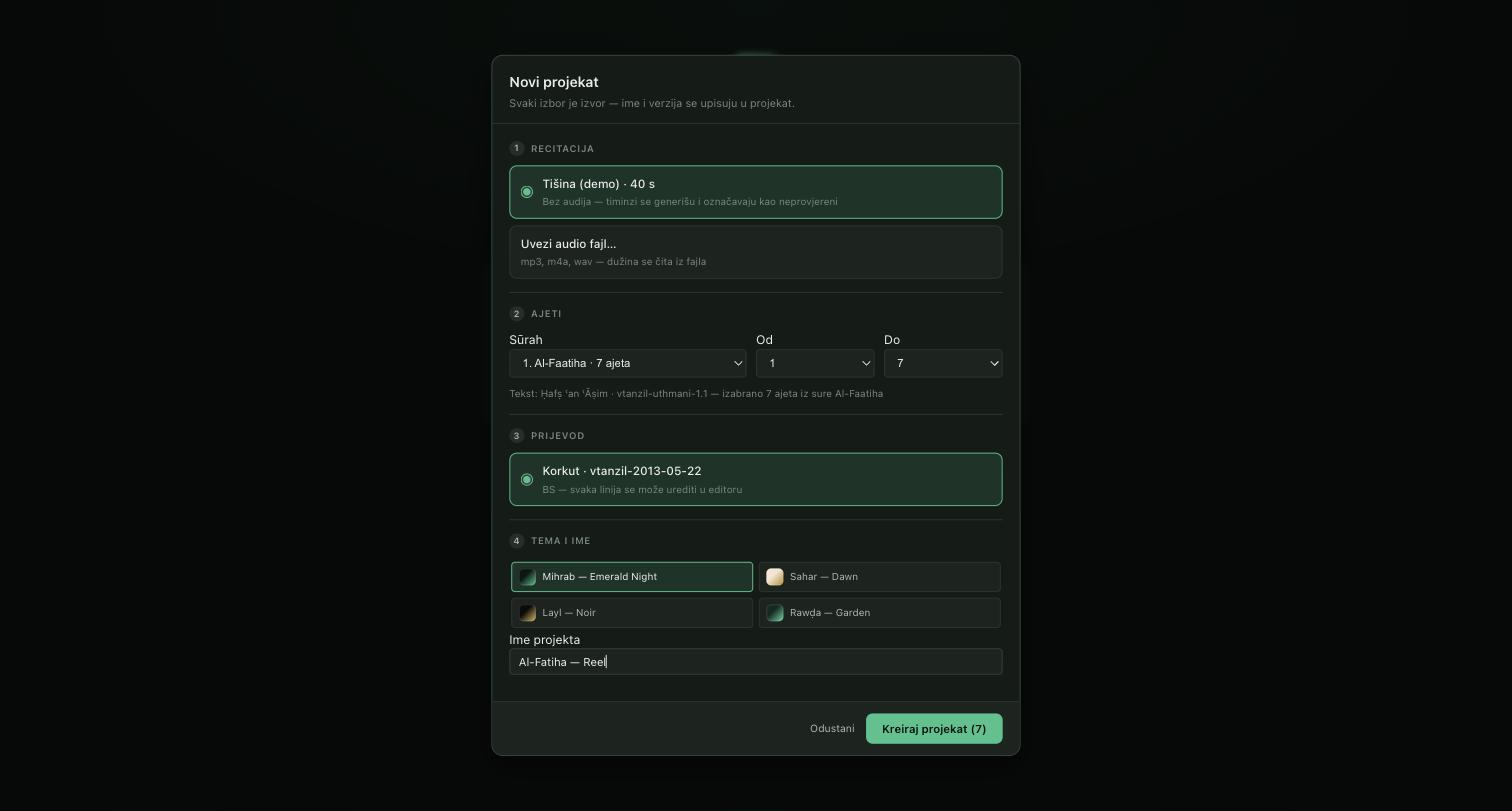
Because a project is a document and not a folder of loose files, it can be copied, backed up and reopened years later with the same result — and the provenance recorded inside it means you can still answer "where did this translation come from?" long after you have forgotten.
Editing: one gesture, one undo
Every change in the editor is a domain event. Dragging a verse boundary across the timeline is one event, not one per pixel, so ⌘Z reverts the whole gesture. Renaming, retiming, switching a theme, changing the aspect ratio, editing a translation line — all the same mechanism, which is also where undo, redo and autosave come from.
- Undo / redo —
⌘Z/⇧⌘Z, unlimited within a session. - Autosave — continuous; the status bar shows the current state.
- Refusal over corruption — an edit that would make the timeline invalid (a segment below the minimum length, or an overlap) is rejected rather than silently clamped into nonsense.
The timeline
Two tracks share one ruler and one playhead.
The verse track holds one clip per ayah and is contiguous by construction — there is no way to leave a hole between two verses, because a hole would mean an ayah with no time. Each shared boundary between neighbouring verses can be dragged; so can the outer edges. Drags show a live preview and clamp against the neighbour, so you cannot push a verse into the one after it.
The background media track sits underneath and may have gaps. Where it does, the theme background shows through. Clips are moved by their body and trimmed by either edge; trimming moves the timeline edge and the corresponding source edge together, so the frame under your cursor doesn't slide while you trim.
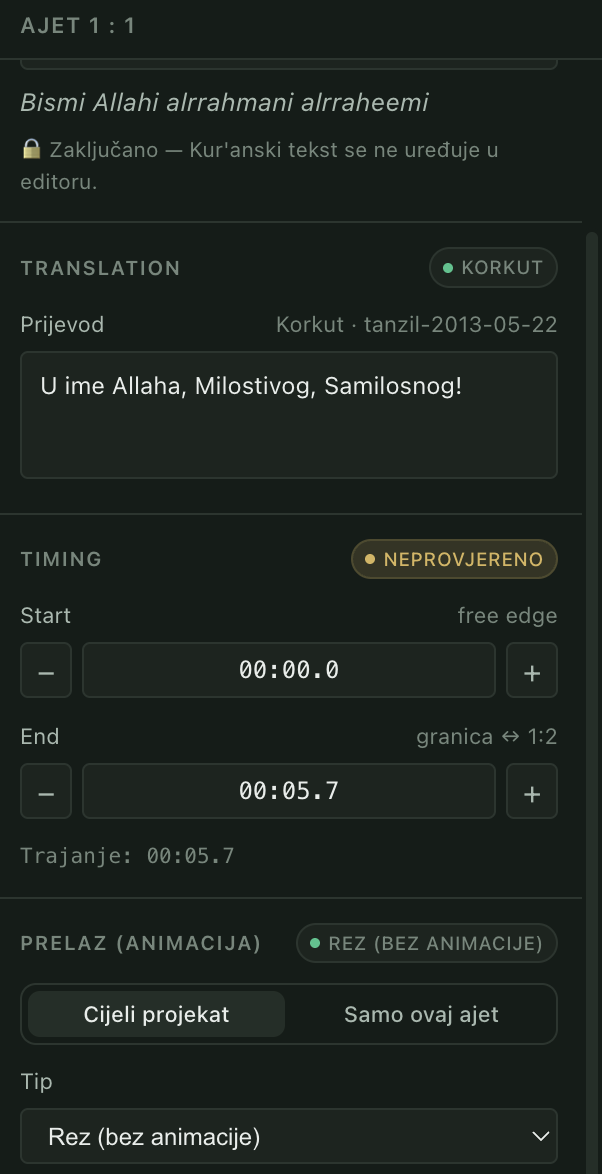
The inspector mirrors the same values numerically, with ± 100 ms nudge buttons labelled by what they actually move — boundary ↔ 1:2, or free edge for an outer edge — so you always know which neighbour a nudge is pushing.
Placing timings by ear
Automatic verse timings exist only for recitations someone has already aligned. Your own recording has none — and if you do not read Arabic, matching a waveform to a verse is guesswork. This is the workflow that solves it.
⇧⌘S opens the sync bar above the timeline. It shows:
- the current verse's Latin transliteration, in the largest type on screen — the only line you can follow against a reciting voice without reading Arabic;
- its translation, immediately beneath;
- the next verse's opening words, so you know what you are listening for.
Play the audio and press T the moment the reciter moves on. Each tap moves that boundary — the same edit as dragging it — so it undoes with ⌘Z, autosaves as you go, and is refused if it would invalidate the timeline. ⌫ steps back a verse if you tapped early.
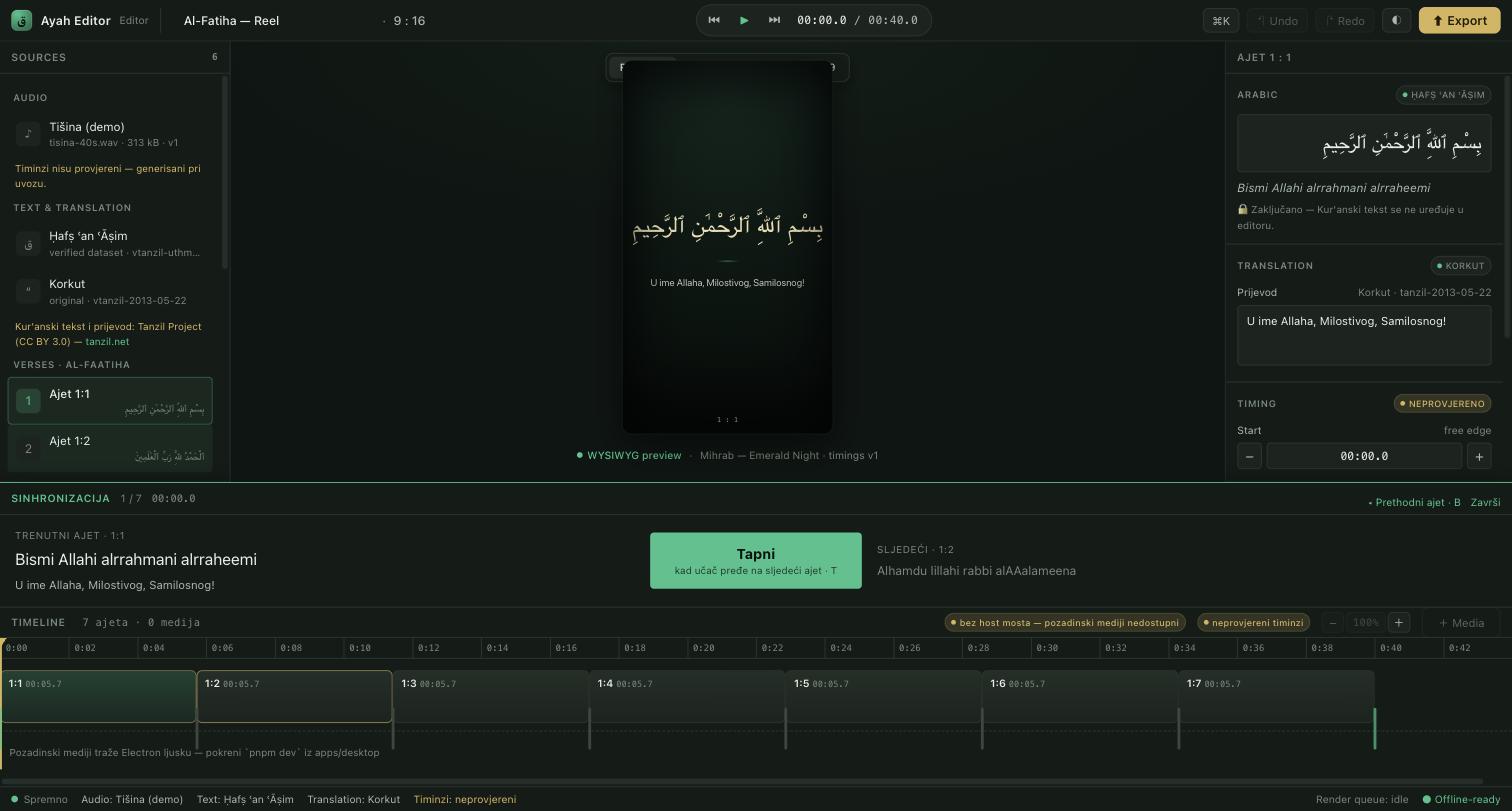
T at each boundaryTapping gets every boundary close; dragging afterwards makes it exact. And the transliteration exists purely to help you edit — it is never rendered into the video.
Qur'anic text and translations
The Arabic ships with the application as a verified, versioned dataset (the Uthmani mushaf from the Tanzil Project), validated at build time and carrying a content fingerprint. Inside the editor it is read-only and visibly marked as such. No feature — and certainly no AI model — writes, alters or paraphrases it.
Translations are the opposite: fully editable, because wording is a legitimate editorial choice. The moment a line diverges from the provider's original it is badged modified, the original remains one click away, and the project remembers both. That way a viewer's question — "is this the standard translation?" — has an answer.
Because the application knows only the concept of a translation provider and not any specific language, new languages can be added as plugins and are recognised automatically. The same is true of themes, fonts, audio sources and exporters.
The canvas, themes and formats
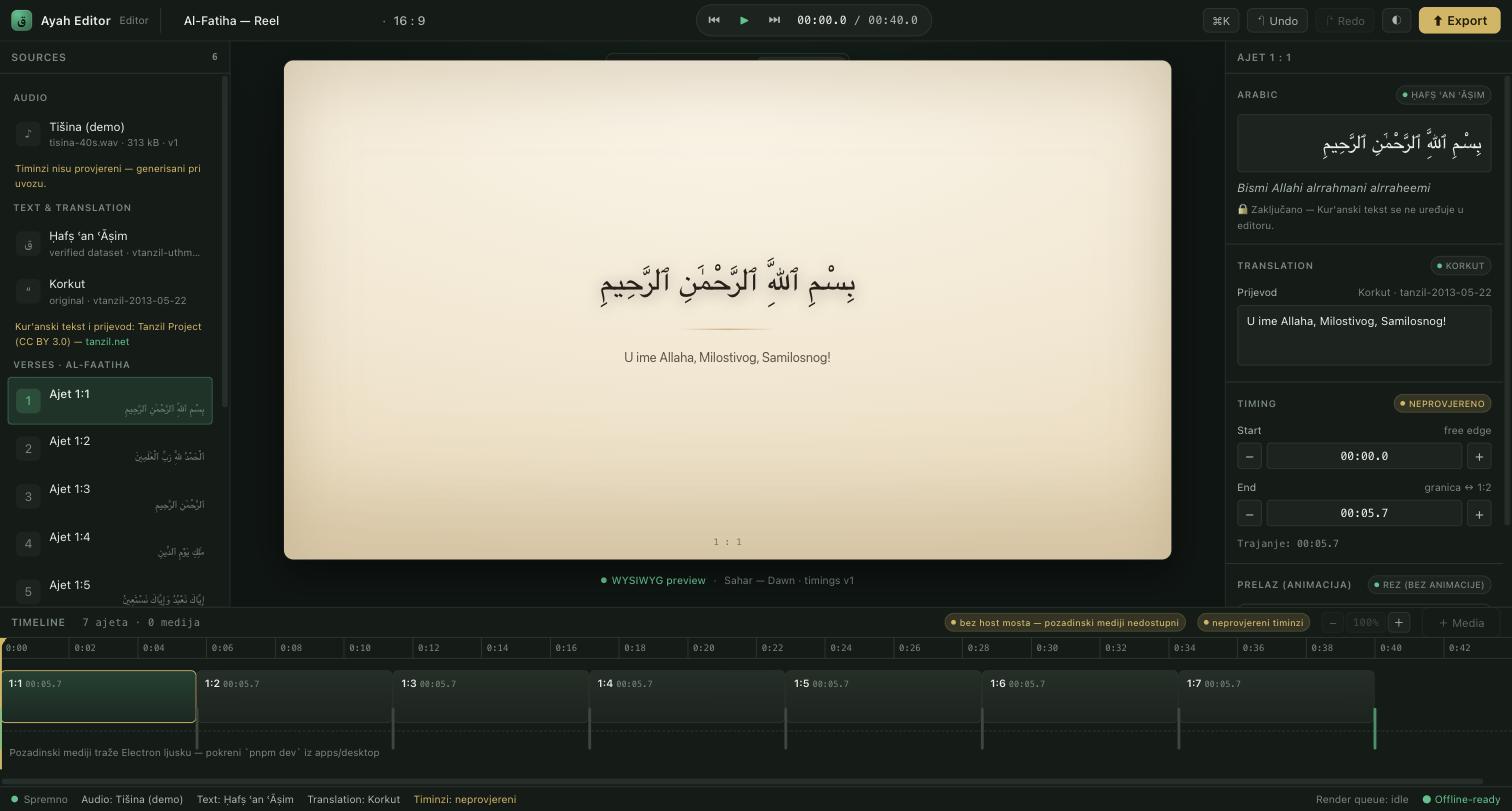
The preview is the brightest region of the interface, and it is the actual frame — not an approximation of it. The frame is authored against a fixed logical resolution and scaled to the display with a single transform, so type size, spacing, margins and line wrapping are always the same fraction of the frame at any zoom or window size.
Three formats ship: Reel 9:16 (1080×1920), Square 1:1 (1080×1080) and YouTube 16:9 (1920×1080). Changing format is an undoable edit like any other.
Four themes ship — Mihrab (Emerald Night), Sahar (Dawn), Layl (Noir) and Rawḍa (Garden). A theme restyles the frame the viewer will see: background, Arabic colour, translation colour, accent. The editor's own light/dark chrome is a separate switch, so you can work in a light interface and still see the dark frame exactly as it will render.
Background media
Video and stills go on the media track — dropped from Finder or Explorer, or added with + Media. Media is referenced, not copied: the project stores a path and a fingerprint, not the bytes, so a project stays small no matter how much 4K footage it points at.
The trade-off is handled explicitly rather than hidden. If a file moves, its clip is flagged with ⚠, the theme background renders in its place, and a Relink… action puts it back — the fingerprint is how the app can tell you which file it was looking for. Background video is muted and follows the transport; the recitation always stays the clock.
Per clip you control fit (cover or contain), opacity, looping, and the in/out range inside the source file.
Transitions
Text transitions control how the words move from one ayah to the next: cut, fade, slide, rise or scale, with a duration, an easing curve and — for directional effects — a direction. A scope toggle decides whether an edit sets the project-wide default or overrides just the selected verse, with the same "modified" badge and one-click reset as translations. The default is a hard cut, so a project shows no animation until you ask for one.
Media transitions control how a background clip enters over what is beneath it. The animation runs on the frames before the clip, so a clip crossfading over the previous one is a true crossfade rather than a dissolve to black. The duration is clamped to the lead-in actually available.
Both are previewed live using the same maths the exporter uses, so the animation you approve is the animation you get.
Keyboard and the command palette
⌘K opens a palette listing every command the editor exposes — filterable by name, navigable with the arrow keys. It contains no logic of its own; it only invokes commands the session already offers, which is exactly why it is where plugins will register theirs.
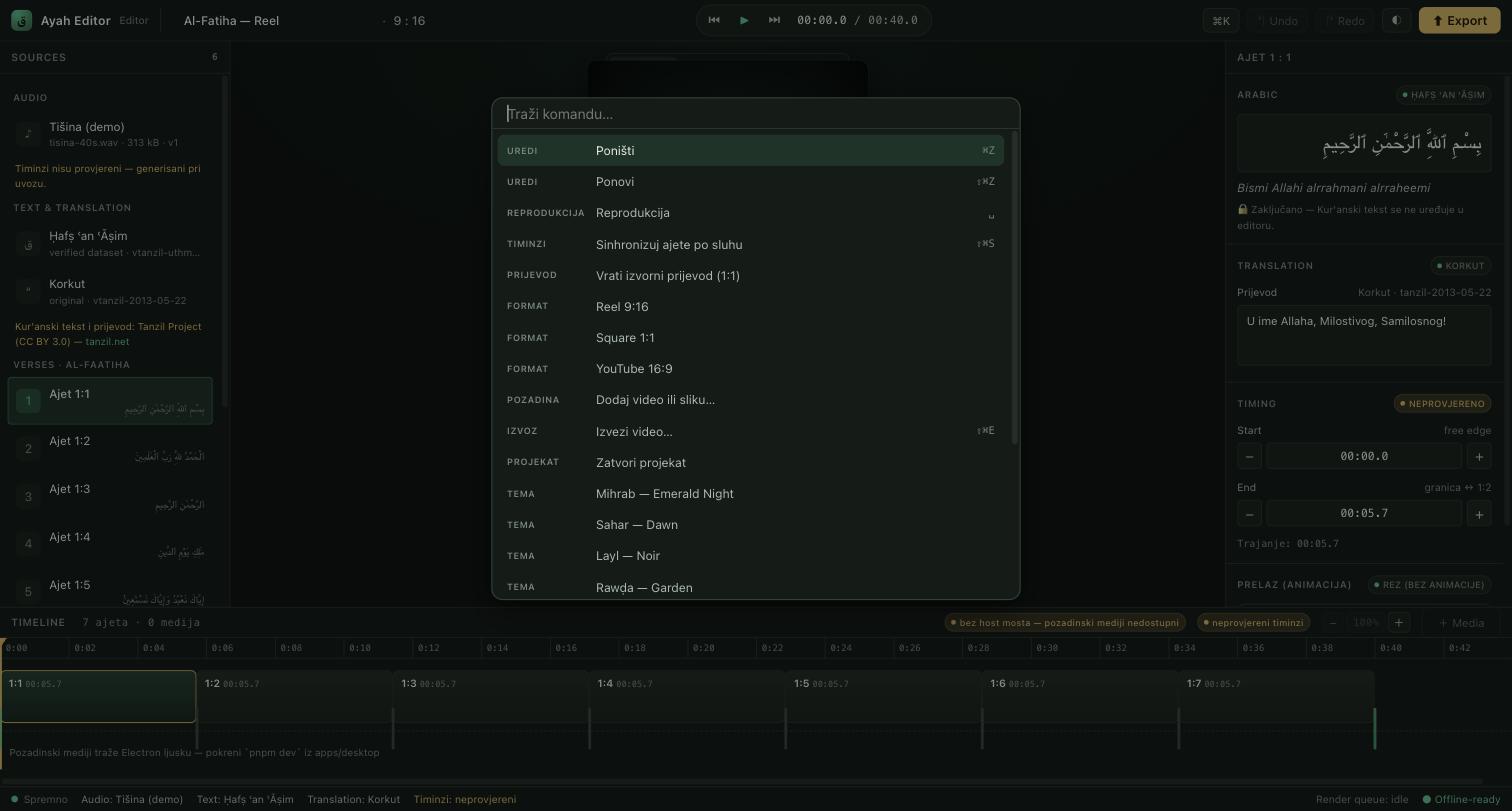
| Undo / redo | ⌘Z / ⇧⌘Z |
|---|---|
| Play / pause | Space |
| Previous / next verse | ← / → |
| Nudge playhead one frame | ⌥← / ⌥→ |
| Zoom timeline | ⌘= / ⌘- |
| Toggle sources / inspector | ⌘1 / ⌘2 |
| Sync verses by ear | ⇧⌘S, then T per boundary |
| Export | ⇧⌘E |
| Command palette | ⌘K |
Export and the render pipeline
Export is a pipeline, not a button that hides a black box:
project state ──▶ validate ──▶ compose ──▶ RenderSpec ──▶ encode ──▶ project.mp4
Validate and compose turn the project into a fully resolved frame description: composition size and frame rate, one scene per verse with its frame range and effective text, the background clips with their source ranges, the resolved theme colours, and the provenance of everything. This stage is pure and runs offline, so an invalid project never reaches an encoder.
Encode hands that description to a render engine, which draws the frames and muxes the audio into an H.264 MP4, reporting progress by frame and honouring cancellation. Two engines exist behind the same interface: one that emits the plan as auditable JSON with no heavy dependencies, and the real encoder built on Remotion and FFmpeg.
The important consequence is the one you can see: the preview and the export are drawn by the same frame component. The editor scales it with CSS; the exporter scales the identical geometry to real pixels. Automated golden tests compare the two, so "the export matches the preview" is enforced by the build rather than promised in marketing copy.
Offline, local, and yours
The mushaf text and translation are bundled. Projects are files on your disk. Rendering runs on your own hardware. There is no account, no sign-in, no telemetry, and your recitation and footage are never uploaded anywhere.
The one planned exception is opt-in and explicit: sending a finished export to your TikTok or YouTube account as a draft, so you finish and publish it inside those apps. It runs only when you ask for it, per export, and it uploads exactly the file you chose — nothing else.
Status
The Early Access builds for macOS and Windows are with testers now — the full editor, free while in Early Access, with a small watermark on exported video. Join the list to get them. Code signing and automatic updates are what Early Access exists to finish.